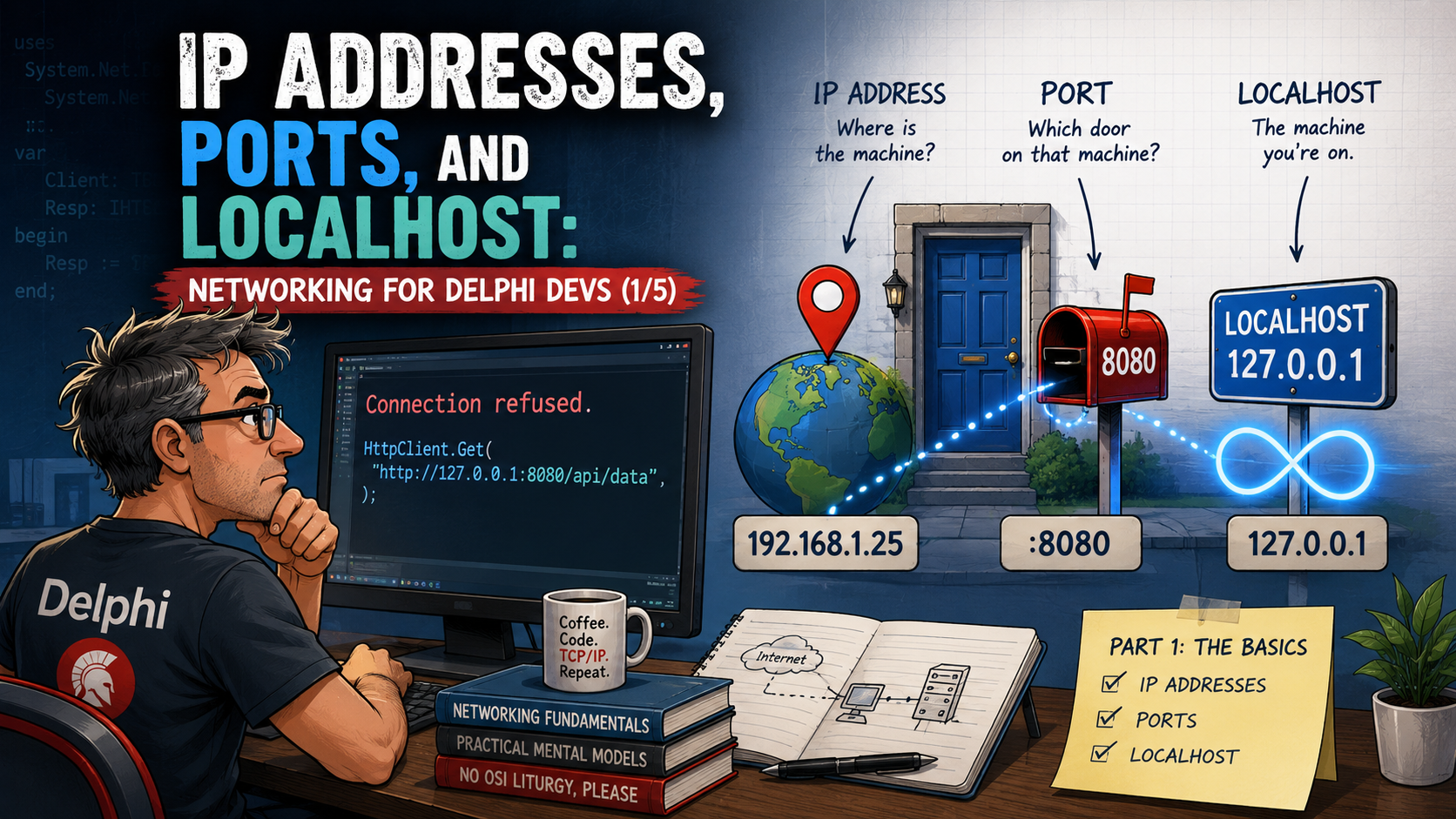
There's a moment that finds every Delphi desktop developer eventually. You've built serious software for years — forms, grids, business rules, a database humming along through FireDAC or, back in the day, the BDE. Then the requirement lands: the app needs to talk to a REST API, or the service runs on another machine now. You wire it up, press F9, and get:
Connection refused.
Refused by whom? Refused why? The error assumes a mental model nobody ever gave us. And that's not a personal failing — it's the natural consequence of a career where networking simply never mattered. Desktop development didn't need it. The database was on the same machine or reachable through a connection string someone in IT handed you, and that was the whole story. We learned pointers, generics, and ORMs; nobody sat us down and explained what an IP address actually is.
This five-part series is that sit-down. No subnet arithmetic, no OSI-layer liturgy, no packet header diagrams — just the practical mental models that make errors like "connection refused" instantly legible. Part 1 covers the three concepts everything else stands on: IP addresses, ports, and the strange little address called localhost. By the end, you'll be able to look at 127.0.0.1:8080, know exactly what each piece means, and diagnose the two most common connection errors before you even open a search engine.
An IP address is a street address for a device
Start with the simplest possible framing: a network is a neighborhood, and every device in it has a street address. That address is the IP address — IP stands for Internet Protocol, the set of rules that governs how data finds its way from one device to another. When your app wants to send data to another machine, it doesn't send it to "the server" in some abstract sense. It sends it to an address, exactly like mailing a letter.
Here is the picture to hold in your head — a small office network where every device has its own address.
Three devices, three addresses, one shared street. When your PC wants to reach the database server, it addresses its data to 192.168.1.50, and the network delivers it — the same way the postal service delivers a letter to house number 50 without you needing to know the route the truck takes.
The addresses you see everywhere — four numbers from 0 to 255, separated by dots, like 192.168.1.50 — are IPv4 addresses, the version of the Internet Protocol that has carried most traffic since the early 1980s. There is also a successor with far longer addresses, IPv6, which exists because the world ran short of IPv4 addresses; you'll recognize its addresses by their colons (::1, 2001:db8::1), and for this series that one sentence is all you need.
Private addresses: your LAN has its own numbering
Here's a fact that quietly explains a lot of confusion: not every IP address is reachable from everywhere. Certain address ranges are reserved for private networks — your home, your office LAN — and they are only meaningful inside that network. The reservation is official: RFC 1918 sets aside 10.x.x.x, 172.16.x.x–172.31.x.x, and the one you've seen a thousand times, 192.168.x.x.
So when you spot 192.168.1.20 in a config file, you now know two things instantly: this is a machine on a local network, and that address means nothing outside that building. Your router is the one device with a foot in both worlds — it holds the network's single public address on the internet side and shuttles traffic between the two.
The takeaway from this picture: the devices on the left can talk to each other by their 192.168.1.x addresses, but nobody out on the internet can dial those numbers — they'd reach their own 192.168.1.x devices instead, since millions of networks reuse the same private ranges. That's also why "just give the customer your IP" is rarely as simple as it sounds.
localhost: the machine talking to itself
There is one address stranger and more useful than all the others: 127.0.0.1, universally nicknamed localhost. It doesn't point at any device on the network — it points at this very machine. Data sent to 127.0.0.1 never touches the network card or the cable; the operating system loops it straight back inside the computer, which is why the whole reserved 127.x.x.x range is called the loopback range (that reservation is in RFC 1122, and the name localhost itself is a reserved name that always means the local machine).
Why would a machine ever need to talk to itself? Because it's the perfect development setup. Your Delphi client and the service it calls can both run on your PC, chat over 127.0.0.1, and behave exactly like a real networked pair — no second machine, no firewall drama, no latency.
But localhost hides the classic gotcha of the trade, and it deserves its own warning box.
This one diagram is worth memorizing, because it explains a startling fraction of all "why can't I connect" tickets.
Read it left to right: the client on the same machine connects fine, because it can knock on the loopback door. The laptop across the LAN gets refused — not because of a firewall, not because of a bug, but because the server simply isn't listening on the address the laptop can reach.
Ports: one address, many doors
An IP address gets data to the right machine — but a machine runs dozens of programs at once. Your database server also runs a web dashboard, a backup agent, and remote administration. If the address were the whole story, incoming data would arrive at the building with no idea which office it's for.
That's what ports solve. If the IP address is the street address of an apartment building, a port is a numbered apartment door — and every server program picks a door and listens at it. Ports are 16-bit numbers, so each machine has doors 0 through 65535, and the combination address:port — say 192.168.1.50:5432 — identifies one specific conversation endpoint: this machine, this program.
Notice what the diagram shows: the Delphi app names both halves — the address and the door — and lands exactly at the database. Knock on :8080 instead, where nothing is listening, and the operating system itself turns you away. Ports also explain how your PC holds ten simultaneous conversations without mixing them up: each one is a distinct pair of endpoints.
Some door numbers are famous by convention. The IANA port registry — IANA being the internet's number-keeping authority — records which service traditionally uses which port: web servers on 80 (HTTP) and 443 (HTTPS), PostgreSQL on 5432, and so on. These are defaults, not laws — any program can listen on any free port — but the conventions are why a browser can find a web server without you ever typing :443. (For completeness: ports 0–1023 are the "system" range that usually needs elevated rights to listen on, per RFC 6335 — a fact worth knowing when your service mysteriously can't bind to port 80.)
What the two classic errors actually mean
With addresses and ports in place, the two errors that haunted the intro become almost self-explanatory — they are opposite sides of the same door metaphor:
- Connection refused — you knocked on a door where nothing is listening. The machine exists and answered, but the answer was "no program owns that port." On Windows this is socket error 10061, WSAECONNREFUSED: "No connection could be made because the target machine actively refused it." Usual causes: the server isn't running, it's on a different port than you think — or it's listening on
127.0.0.1and you're knocking from another machine. - Port already in use — you tried to open a door that another program already owns. Only one listener per port. On Windows this is error 10048, WSAEADDRINUSE. Usual causes: a second instance of your own server, or a leftover process that never shut down.
Let's make "connection refused" concrete with a few lines of modern RTL — no third-party components, just the cross-platform System.Net.Socket unit that ships with Delphi (the current release being Delphi 13 Florence). This tiny probe knocks on a door and reports what happens:
uses
  System.SysUtils, System.Net.Socket;

procedure ProbePort(const AHost: string; APort: Word);
var
  LSocket: TSocket;
begin
  LSocket := TSocket.Create(TSocketType.TCP);
  try
    try
      // Knock on one specific door: address + port.
      LSocket.Connect('', AHost, '', APort);
      Writeln(Format('%s:%d — a program is listening.', [AHost, APort]));
      LSocket.Close;
    except
      on E: ESocketError do
        // Nothing listening there -> the OS refuses the connection.
        Writeln(Format('%s:%d — %s', [AHost, APort, E.Message]));
    end;
  finally
    LSocket.Free;
  end;
end;
Call ProbePort('127.0.0.1', 5432) with a local PostgreSQL running and you'll get the friendly answer; call ProbePort('127.0.0.1', 9999) and you'll see the refusal come back from TSocket.Connect as an ESocketError — the very exception your real applications should be catching and translating into a human-readable message ("Is the server running? Is the port right?") instead of surfacing raw socket text to users. For HTTP-speaking services you'd reach for TNetHTTPClient or THTTPClient instead — much more on those in Parts 4 and 5.
See it on your own machine
Nothing cements a mental model like watching it run on your own hardware, so open a terminal (cmd or PowerShell on Windows) and take five minutes for these four steps.
Step 1 — Find your own addresses
Run Windows' ipconfig to see every address your machine holds right now:
ipconfigLook for the line IPv4 Address under your active adapter — you'll almost certainly see an RFC 1918 private address like 192.168.1.20. That's you, as your LAN knows you. (On macOS or Linux, ifconfig or ip addr shows the same thing.)
Step 2 — Prove loopback exists
Use ping, the "are you there?" tool, against the loopback address:
ping 127.0.0.1Replies come back in well under a millisecond — because the "network" this traverses is entirely inside your machine. Then ping your own LAN address from Step 1, and ping a colleague's machine: same tool, three different distances.
Step 3 — See who is listening at which door
Run netstat to list every port currently owned by a listening program, with the owning process ID:
netstat -ano | findstr LISTENINGEach line shows a local address:port pair. And now the addresses mean something: 0.0.0.0:5432 means "PostgreSQL, answering on every address this machine has," while 127.0.0.1:8000 means "this service answers loopback only — invisible to the LAN." You are now reading the exact information that resolves the localhost trap from earlier.
Step 4 — The same view, the modern way
On current Windows, PowerShell's Get-NetTCPConnection gives you the same data as filterable objects:
Get-NetTCPConnection -State Listen | Sort-Object LocalPortPick any port in that list and ask yourself: which program is that, and did it choose 127.0.0.1 or 0.0.0.0? If you can answer, this post has done its job.
Takeaways
Three concepts, and the fog around network errors lifts. An IP address identifies a machine — private 192.168.x.x-style addresses exist only inside your LAN, and 127.0.0.1 (localhost) is always this very machine, never reachable from another one. A port identifies a program on that machine, so address:port names one exact conversation endpoint. And the two classic errors are just the door metaphor speaking plainly: connection refused means nobody is listening at that door; port already in use means someone already owns it.
An IP address finds the building. A port finds the door.
Connection refusedmeans you knocked on a door with nobody behind it — and now you know exactly which three things to check.
Here's the thread we pull next: in real life you almost never type 192.168.1.50 — you type db.mycompany.local or api.example.com. Somewhere between your keystroke and the connection, a name becomes an address. That translation machinery — DNS, the hosts file, and how your machine got its own address in the first place (DHCP) — is Part 2, and it's where an entire second family of "why can't I connect" mysteries gets solved. See you there.