Part 1 got Docker Desktop installed, ran hello-world, and pinned down three words — image, container, registry — so they'd stop being intimidating. That was the warm-up. You can run containers now. Time to run something you'd actually want on your machine.
Here's the promise for this post: a fully working PostgreSQL database server — the same relational database that backs a large slice of the software industry — started with one command, no native installer, no "next-next-finish" wizard, no service quietly wedged into your Windows startup. And by the end, a real Delphi console program using FireDAC that creates a table, inserts rows, and reads them back out of that container.
The kicker is what happens when you're done experimenting: docker rm the container and your machine is spotless. No leftover PostgreSQL service, no stray data directory, no registry entries. The database existed, did its job, and vanished without a trace — exactly the tidiness Part 1 promised containers would give you.
This is the second stop in a five-part journey, so here's the whole map.
Why a database is the perfect first real container
A database is the ideal thing to containerize first, and the reason is emotional as much as technical. Installing PostgreSQL natively has always been a small commitment — a system service, a data directory, a superuser password you'll forget, an uninstall you don't fully trust. That friction is exactly why "just try Postgres for an afternoon" so rarely happens.
A container erases the commitment. The database runs in an isolated box that shares nothing with your host except the one port you hand it, and throwing it away is a single command. Try a schema, break it, delete the container, start fresh — the cost of experimenting drops to almost zero.
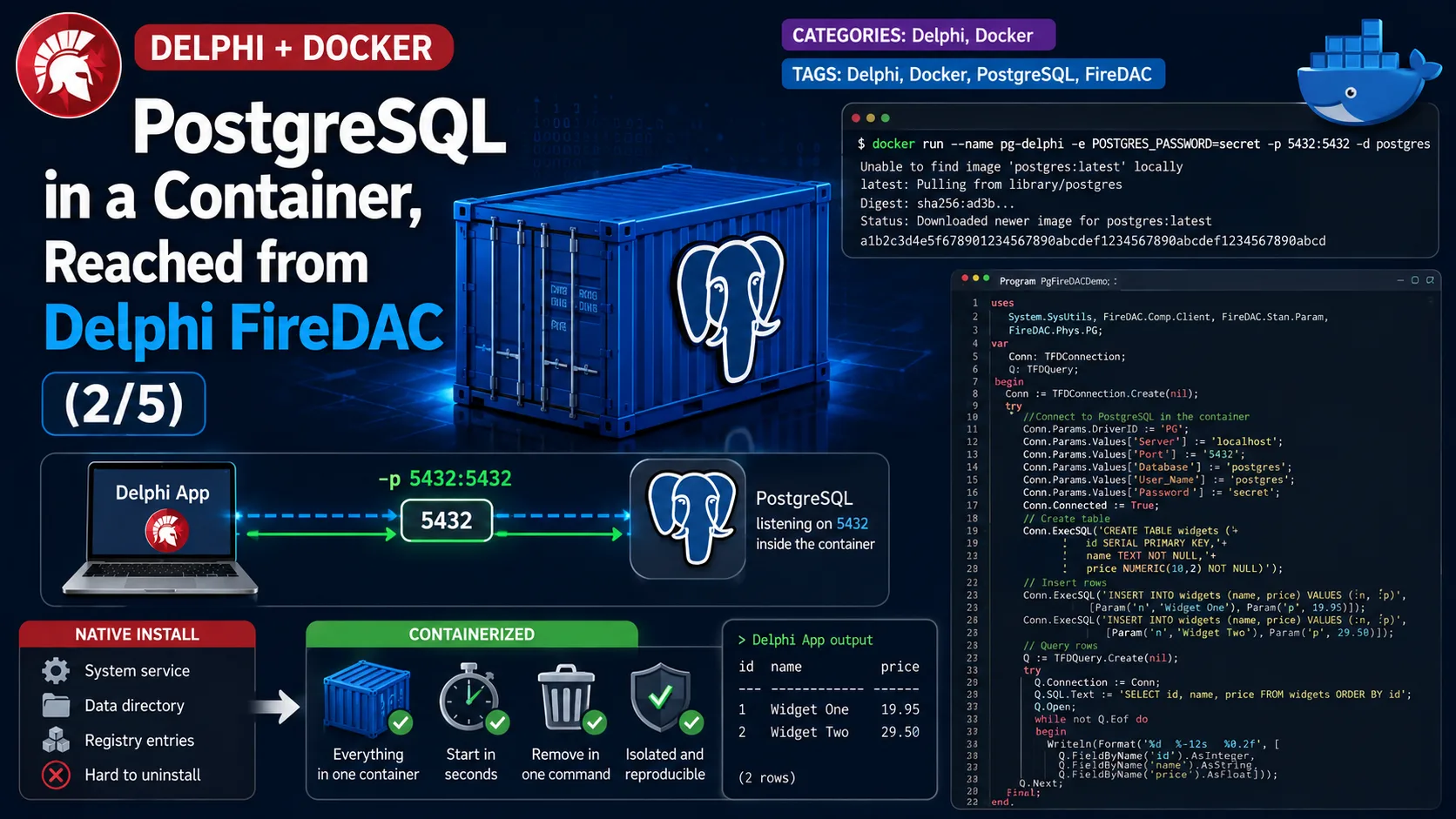
Read the two boxes side by side: on the left, a native install scatters itself across your system; on the right, everything the database needs lives inside one container that you can delete cleanly. That contrast is the whole reason we start here.
Step 1 — Run PostgreSQL with one command
Everything begins with a single docker run. We'll use the official postgres image on Docker Hub — the image maintained by the PostgreSQL Docker community, the canonical way to run PostgreSQL (the open-source relational database) in a container. Here is the command, and then we'll interpret every flag.
docker run --name pg-delphi -e POSTGRES_PASSWORD=secret -p 5432:5432 -d postgresEach piece earns its place, so let's name what each one does:
docker run— create and start a container from an image, exactly as in Part 1.--name pg-delphi— give the container a friendly name so you can refer to it later (docker stop pg-delphi) instead of a random hash Docker would otherwise assign.-e POSTGRES_PASSWORD=secret— set an environment variable inside the container. Per the official image documentation,POSTGRES_PASSWORDis the one variable the image requires: it's the password for the default superuser. (Two optional siblings exist:POSTGRES_USERchanges the superuser name from its default ofpostgres, andPOSTGRES_DBsets the initial database name, which otherwise defaults to the user's name. We'll lean on the defaults and keep the moving parts few.)-p 5432:5432— publish a port: map port 5432 on your host to port 5432 inside the container.5432is PostgreSQL's standard port. This flag is the entire bridge between your Delphi app and the database, and it gets its own diagram in Step 3.-d— run detached, in the background, so your terminal comes straight back to you instead of tailing the server's log.postgres— the image to run. Since it isn't on your machine yet, Docker pulls it from the registry (Part 1's third word) on first use.
That port number is not new to you if you followed the networking series — it's the same "programs listen on a numbered port" idea from ports and localhost, now pointed at a container. Run the command, and in a few seconds you have a PostgreSQL server accepting connections on localhost:5432. No installer ran. Nothing touched your Windows services.
Step 2 — Confirm it's alive
Before writing a line of Delphi, let's prove the server is up. The everyday command for "what's running right now" is docker ps, which lists your live containers.
docker psYou'll see a row for pg-delphi with an image of postgres, a status like Up 12 seconds, and a ports column showing 0.0.0.0:5432->5432/tcp — Docker confirming the mapping you asked for. If you want to peek inside the running database, you can open a shell into the container and talk to PostgreSQL with its own command-line client, psql:
docker exec -it pg-delphi psql -U postgresThat command deserves a one-line gloss: docker exec runs a command inside an already-running container (as opposed to docker run, which starts a new one). The -it flags make it interactive with a terminal attached, and psql -U postgres launches PostgreSQL's built-in client as the postgres superuser. You'll land at a postgres=# prompt — that's the database itself, answering from inside the box. Type \q to leave. This step is entirely optional; it's here so you can see that the server is real before Delphi ever connects.
Step 3 — The mental model: one port, bridged into the box
The single most important concept in this whole post is that -p 5432:5432 flag, so let's make it a picture. A container is isolated — by default nothing outside can reach a program inside it. Publishing a port drills exactly one predictable hole through that isolation.
Read it left to right: your Delphi app connects to localhost:5432 as if a database were installed right there on your machine. It has no idea a container exists. The -p 5432:5432 mapping quietly forwards that traffic across the container's boundary to PostgreSQL listening on 5432 inside the box. The number on the left of the colon is the host port you dial; the number on the right is the port inside the container. Here they match, which keeps things simple — but they needn't: -p 6000:5432 would let you reach the same database at localhost:6000 instead, handy when host port 5432 is already taken.
That's the whole abstraction. To every tool on your host — Delphi, psql, a GUI, anything — the containerized database looks exactly like a local one on localhost:5432.
Now the Delphi part: FireDAC talks to the container
This is where a seasoned Delphi developer smiles, because from Pascal's side there is nothing exotic here at all. The database is just a PostgreSQL server on localhost:5432. You connect to it with FireDAC — Delphi's built-in, high-performance database access layer — exactly as you would to any PostgreSQL server, containerized or not.
FireDAC identifies each database engine by a short DriverID, and PostgreSQL's is PG. Per Embarcadero's Connect to PostgreSQL (FireDAC) guide, a PostgreSQL connection is described by a handful of parameters — DriverID, Server, Port, Database, User_Name, and Password — and the driver lives in the unit FireDAC.Phys.PG. Here is a complete, focused console program that connects, creates a table, inserts two rows, and selects them back.
program PgDemo;

{$APPTYPE CONSOLE}

uses
  System.SysUtils,
  FireDAC.Comp.Client,   // TFDConnection, TFDQuery
  FireDAC.Phys.PG,       // the PostgreSQL driver (DriverID = PG)
  FireDAC.Phys.PGDef,    // its design/registration definitions
  FireDAC.Stan.Def,      // driver/connection definition manager
  FireDAC.Stan.Async,    // async execution support
  FireDAC.DApt;          // the data adapter that fills TFDQuery

var
  Conn: TFDConnection;
  Qry: TFDQuery;
begin
  try
    Conn := TFDConnection.Create(nil);
    try
      // Describe the connection to our containerized PostgreSQL.
      Conn.Params.DriverID  := 'PG';
      Conn.Params.Values['Server']    := 'localhost';
      Conn.Params.Values['Port']      := '5432';
      Conn.Params.Values['Database']  := 'postgres';   // the default DB
      Conn.Params.Values['User_Name'] := 'postgres';   // default superuser
      Conn.Params.Values['Password']  := 'secret';     // matches POSTGRES_PASSWORD
      Conn.Connected := True;
      Writeln('Connected to PostgreSQL in the container.');

      // CREATE + INSERT are statements that return no rows: ExecSQL.
      Conn.ExecSQL(
        'CREATE TABLE IF NOT EXISTS widgets (' +
        '  id     SERIAL PRIMARY KEY,' +
        '  name   TEXT NOT NULL,' +
        '  price  NUMERIC(10,2) NOT NULL)');

      Conn.ExecSQL(
        'INSERT INTO widgets (name, price) VALUES (:n, :p)',
        ['Rocket Skates', 20.00]);
      Conn.ExecSQL(
        'INSERT INTO widgets (name, price) VALUES (:n, :p)',
        ['Portable Hole', 99.00]);
      Writeln('Inserted 2 rows.');

      // SELECT returns rows, so use a TFDQuery and loop the result set.
      Qry := TFDQuery.Create(nil);
      try
        Qry.Connection := Conn;
        Qry.Open('SELECT id, name, price FROM widgets ORDER BY id');
        while not Qry.Eof do
        begin
          Writeln(Format('#%d  %-16s  $%.2f',
            [Qry.FieldByName('id').AsInteger,
             Qry.FieldByName('name').AsString,
             Qry.FieldByName('price').AsFloat]));
          Qry.Next;
        end;
      finally
        Qry.Free;
      end;
    finally
      Conn.Free;
    end;
  except
    on E: Exception do
      Writeln('ERROR: ', E.ClassName, ': ', E.Message);
  end;
  Readln;
end.
A couple of things are worth calling out. Notice the split between TFDConnection.ExecSQL and TFDQuery: ExecSQL is for statements that change data but return no result set — CREATE TABLE, INSERT, UPDATE, DELETE — while TFDQuery.Open runs a SELECT and hands you a navigable result set you walk with the classic while not Eof do … Next loop every Delphi developer already has in muscle memory. The :n and :p are FireDAC parameters — placeholders bound to the values you pass, so PostgreSQL sees properly-typed, safely-escaped data rather than string-concatenated SQL. Run it, and the console prints your two widgets, read straight back out of the container:
Connected to PostgreSQL in the container.
Inserted 2 rows.
#1  Rocket Skates     $20.00
#2  Portable Hole     $99.00
That output is the full round trip: a modern Delphi program, using nothing but the built-in RTL and FireDAC, creating and querying a real PostgreSQL server that you conjured into existence with one docker run.
The honest gotcha: FireDAC needs the client library
There is one real snag between you and that output, and it's better to hear it now than to fight a cryptic error later. FireDAC's native PostgreSQL driver doesn't speak the PostgreSQL wire protocol on its own — it delegates to libpq, PostgreSQL's official C client library, shipped as libpq.dll on Windows. The container gave you the server; it did not put the client library on your host, and your Delphi app runs on your host.
Where do you get it? libpq ships inside the standard PostgreSQL Windows download (from EDB) — you can run the installer and select only the command-line tools to get libpq.dll and its companions without installing the server itself, then copy that set of DLLs next to your .exe or onto your PATH. This is a one-time setup on each machine that runs the app, and once the DLLs are in place, FireDAC connects without another thought. It's a small tax, and it's entirely reproducible — no guessing.
Read the three boxes as a chain: your Delphi app calls into libpq.dll on the host, and libpq is what actually talks across the port to the PostgreSQL server in the container. Miss the middle box and FireDAC has no way to reach the server — that's the gotcha in one picture.
The same database welcomes any client
Because this is a standard PostgreSQL server, nothing about it is Delphi-specific — and that's a strength worth naming honestly. The container speaks the ordinary PostgreSQL protocol, so any client on the planet connects to the exact same localhost:5432 with the exact same credentials.
That interoperability is the quiet payoff of using a standard, open-source database in a container: your Delphi frontend and, say, a web backend can share one database without either knowing or caring what the other is written in.
One catch to remember: this data is temporary
There's a deliberate simplification in everything above, and it's important you know about it before you rely on this container for anything you'd miss. Right now, the widgets table and its rows live inside the container.
For this post, temporary is a feature: experiment freely, and when you're done, docker stop pg-delphi && docker rm pg-delphi leaves your machine exactly as it was before you started.
Takeaways
You just ran a production-grade database with one command, talked to it from Delphi with the tools you already know, and learned the one abstraction — the published port — that makes a containerized service feel local.
A PostgreSQL server is now one
docker runaway, and reaching it from Delphi is ordinary FireDAC againstlocalhost:5432— provided libpq rides along on the host. When you're done,docker rmand your machine is spotless.
Three things are worth carrying forward. First, -p host:container is the bridge — internalize that single flag and containers stop being mysterious. Second, from Delphi's side there's nothing new to learn: DriverID PG, standard FireDAC, one honest dependency (libpq, matched to your app's bitness). Third, the database is standard and open, so it welcomes Delphi, psql, DBeaver, or a Node backend with equal indifference.
One question is left hanging on purpose: where did that postgres image actually come from, and what is it made of? That's the subject of Part 3 — images, tags, layers, and repositories — the anatomy of the thing you pulled without a second thought. See you there.